Shotcraft
Make a short video from what's already in your chat. Pick a style, answer three questions, and download an MP4.
Shotcraft is built on video-shotcraft, an open-source project by Wei Yihao (Vincentwei1021), under the Apache-2.0 licence. The Cielverse team packaged it as a plugin for ChatGPT and Claude.
Free for everyone. Nobody should charge you for it.
What it does
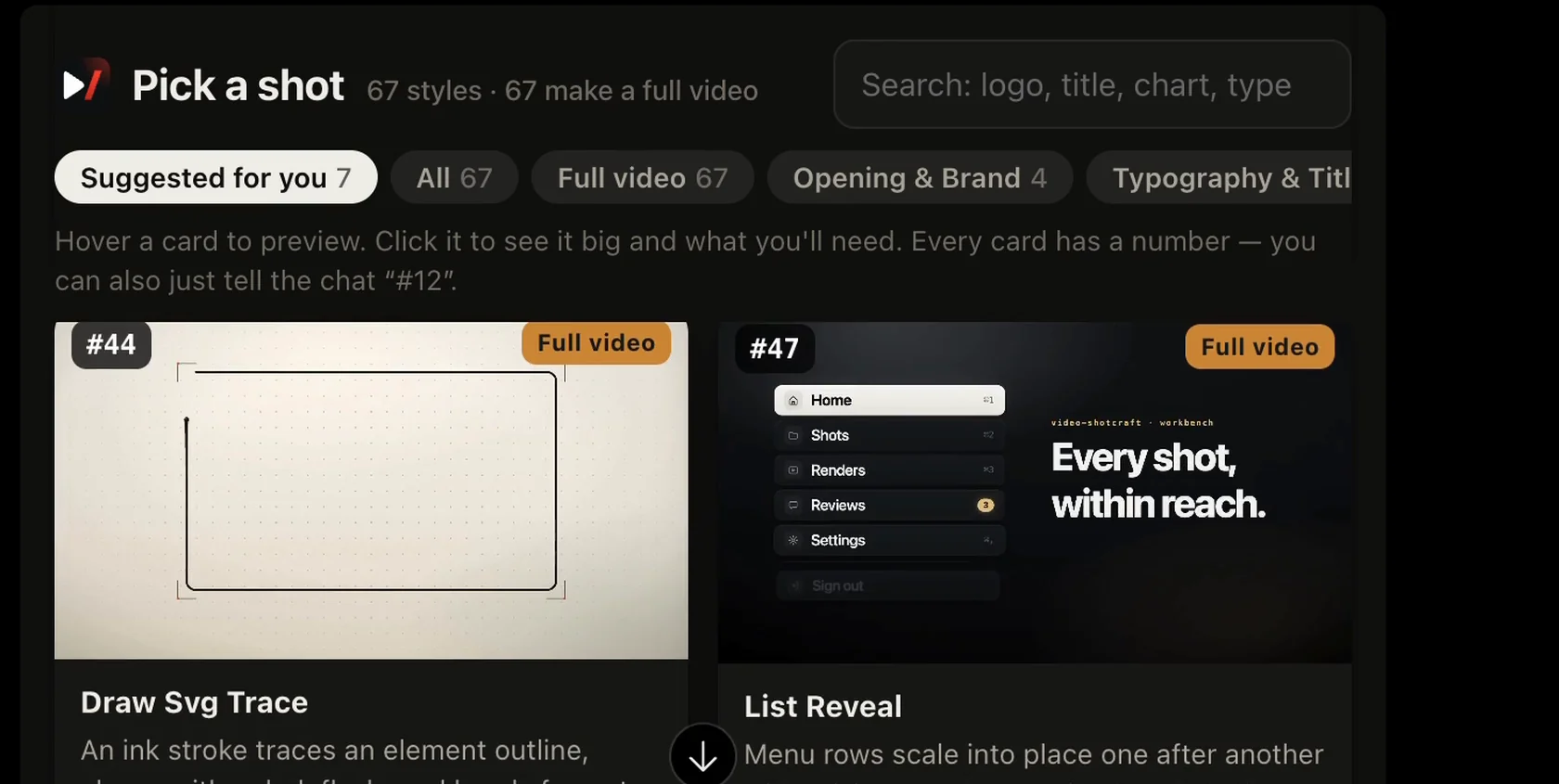
67 video styles.
Hover over a card to preview it, then pick one.
Three quick questions.
What the video should say, who writes the on-screen text, and how long it should be.
A video you can download.
Usually 15 to 30 seconds, as an MP4 file.
Nothing to install.
The video is made right in your browser, inside the chat.
What it can see,
plainly
- The text it needs from your chat. When you ask for a video, ChatGPT or Claude sends Shotcraft the text to work from, for example a document you dropped into the chat. That text passes through the Shotcraft server.
- Your project files aren't kept on the server.
- In ChatGPT only, the finished video is kept on the server for 1 hour so it can play and be downloaded.
- Pictures you add inside the Shotcraft window stay in your browser.
- No account, no sign-in. Shotcraft doesn't ask who you are. It also means anyone who has the link can use it.
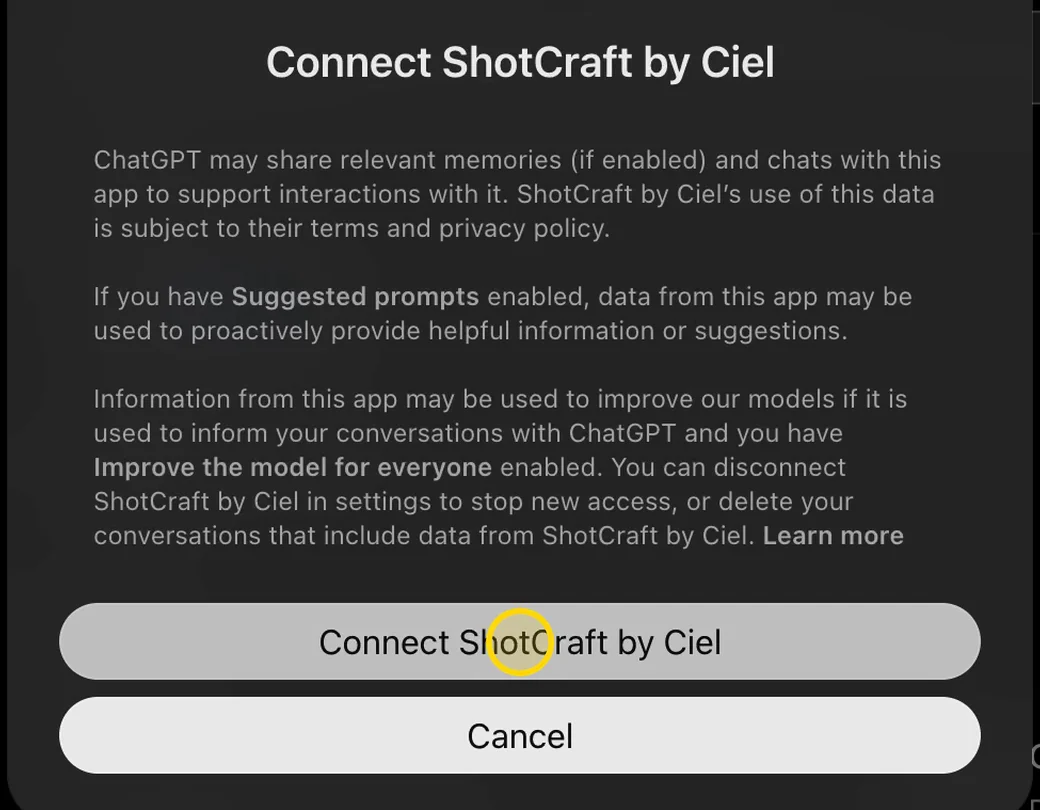
- The apps ask you first. Claude asks before it uses Shotcraft each time, unless you choose Always allow. ChatGPT's own notice says it may share relevant memories (if you have memory turned on) and chats with the plugin.
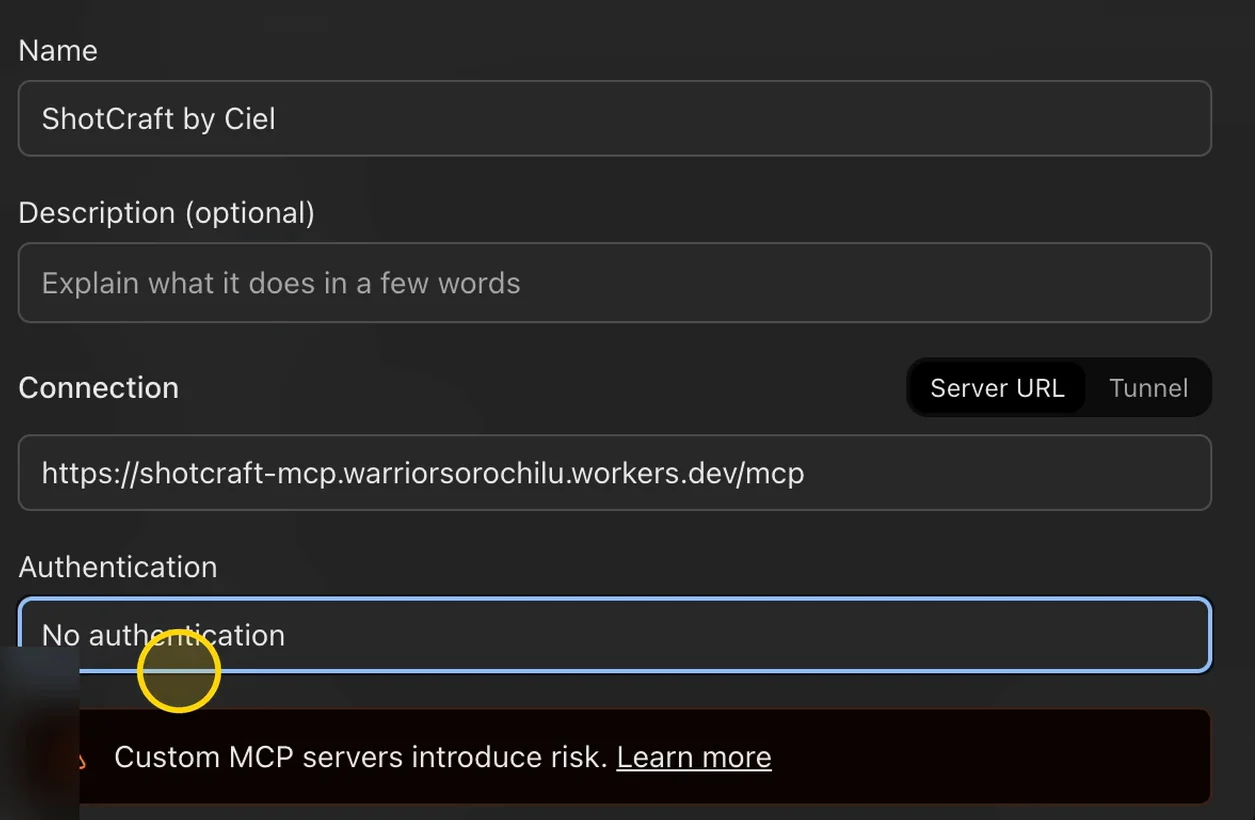
- You'll see a warning when you add it. Both apps warn that plugins from outside their own store carry risk. That warning is normal. Only add plugins from people you trust.
Before you start
- Claude: Works on the Free, Pro, Max, Team and Enterprise plans. A Free account can add only one custom connector. On Team and Enterprise, an Owner of the organisation adds it.
- ChatGPT: On chatgpt.com in a web browser, not the phone app. It worked on a Free account when we checked on 26 Oct 2026. OpenAI's help page lists Business, Enterprise and Edu, so what you see may depend on your plan. In a Business workspace, only admins and owners can add it.
The link you'll paste:
https://shotcraft-mcp.warriorsorochilu.workers.dev/mcpAdd Shotcraft to Claude
Checked on 26 Oct 2026. Claude changes its screens from time to time, so yours may look a little different.
-
Step 1
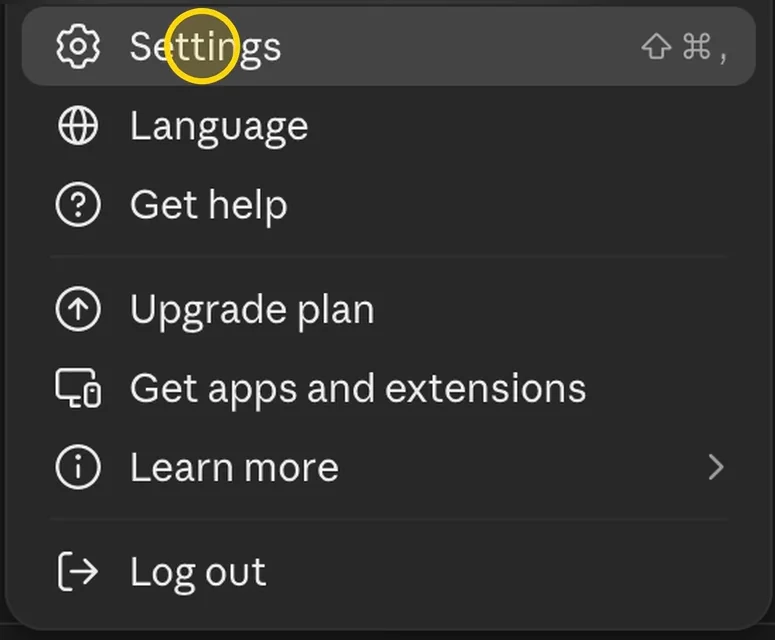
In Claude, click your account name at the bottom left, then Settings.
-
Step 2
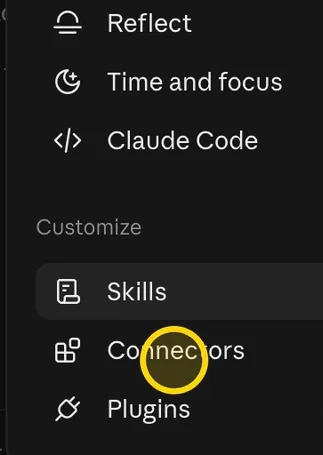
Under Customize, open Connectors.
-
Step 3
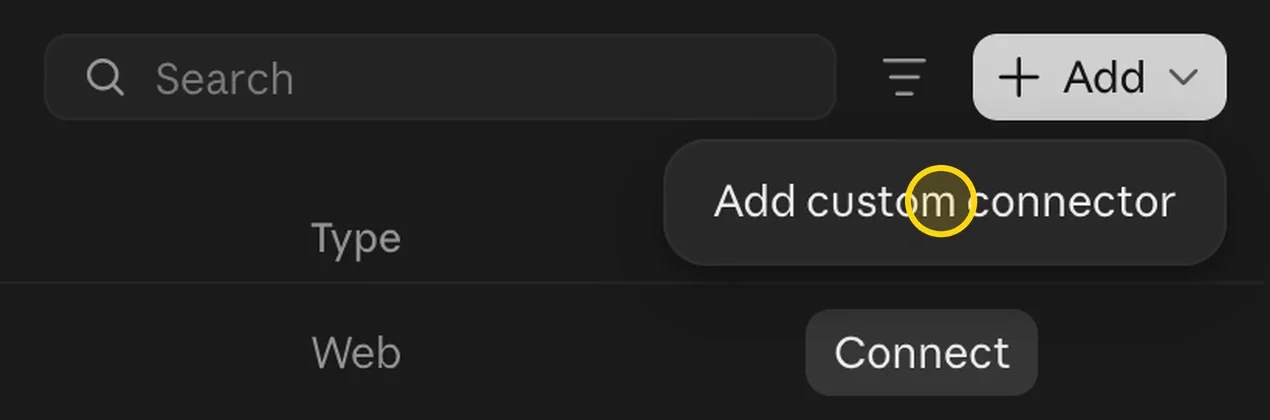
Click + Add, then Add custom connector.
-
Step 4
In Name, type any name you like, for example Shotcraft.
-
Step 5
Paste the link into MCP server URL, then click Continue.
https://shotcraft-mcp.warriorsorochilu.workers.dev/mcp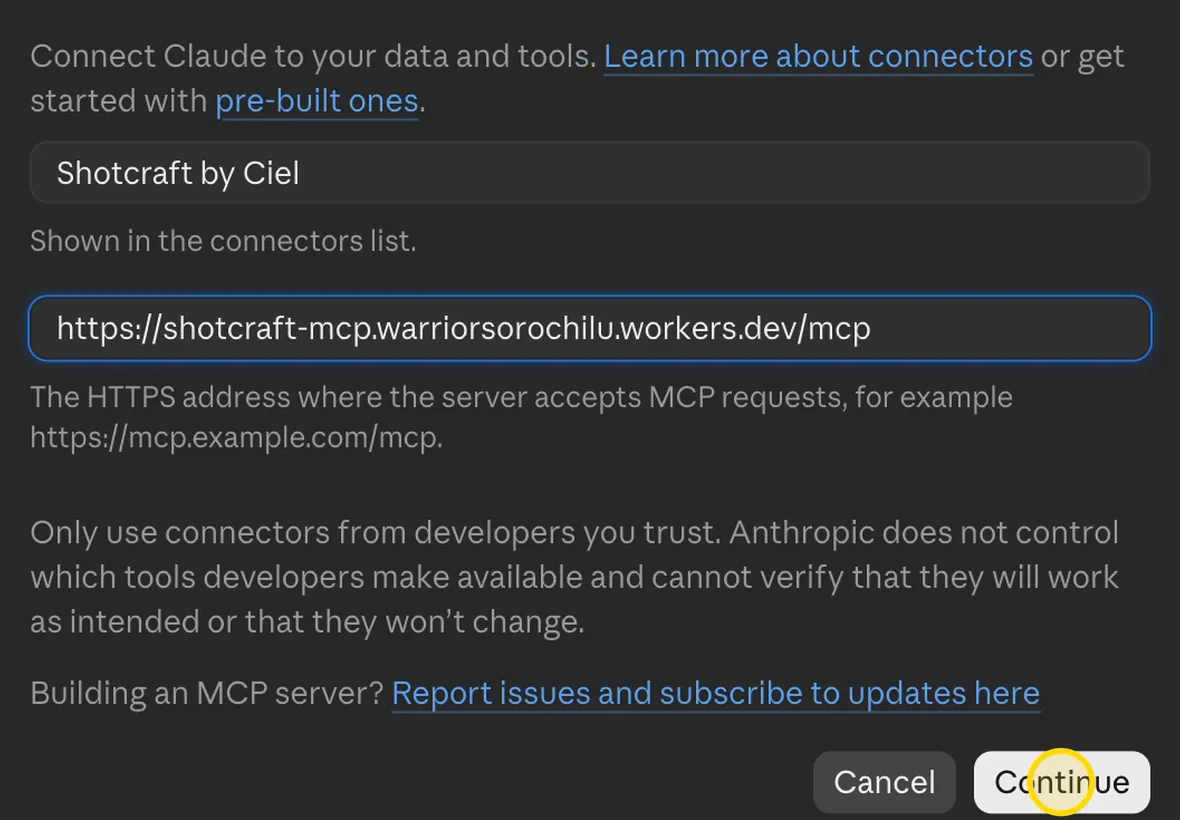
-
Step 6
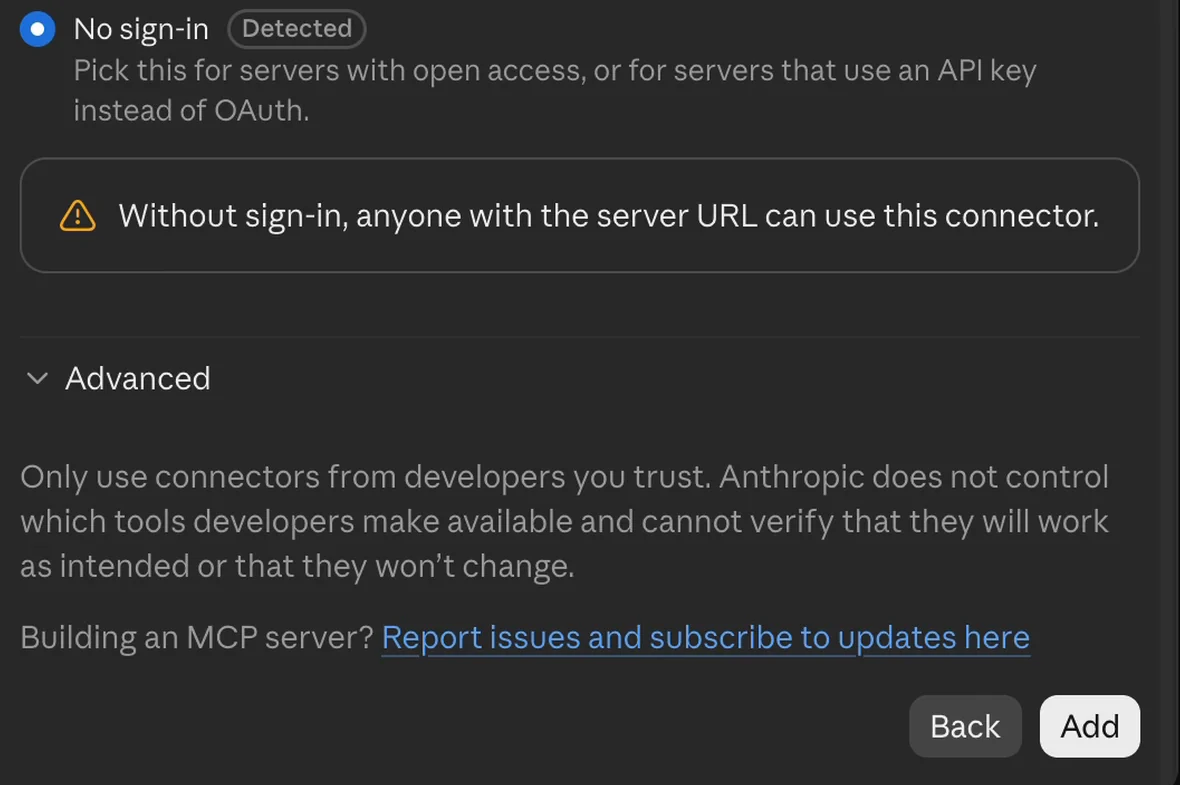
Under Authentication, choose No sign-in (it's usually already selected), then click Add.
-
Step 7
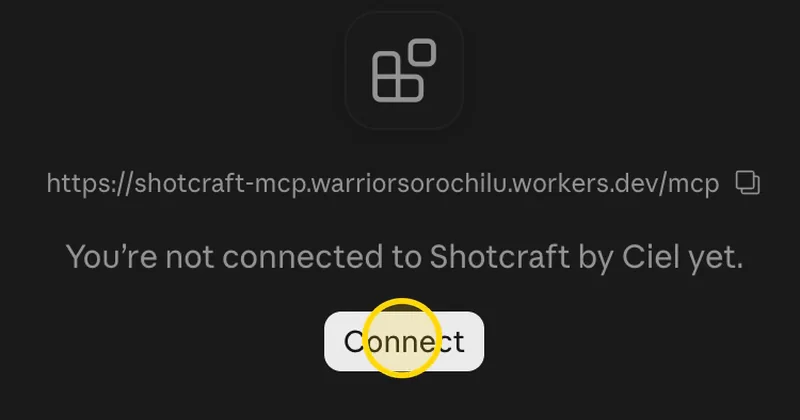
Click Connect. When you see “Connected to Shotcraft”, you're done.
Try it
Open a new chat, drop in a document or paste your text, and type “Use Shotcraft to make a video”. When Claude asks to use Shotcraft, click Allow (or Always allow so it stops asking). Pick a style, tell Claude its number (for example “I picked 16”), and answer the three questions. The video plays right in the chat, ready to download.
If Claude doesn't use Shotcraft, click + in the message box, open Connectors and switch Shotcraft on for that chat.
Add Shotcraft to ChatGPT
Checked on 26 Oct 2026. On chatgpt.com in a web browser. ChatGPT changes its screens from time to time, so yours may look a little different.
-
Step 1
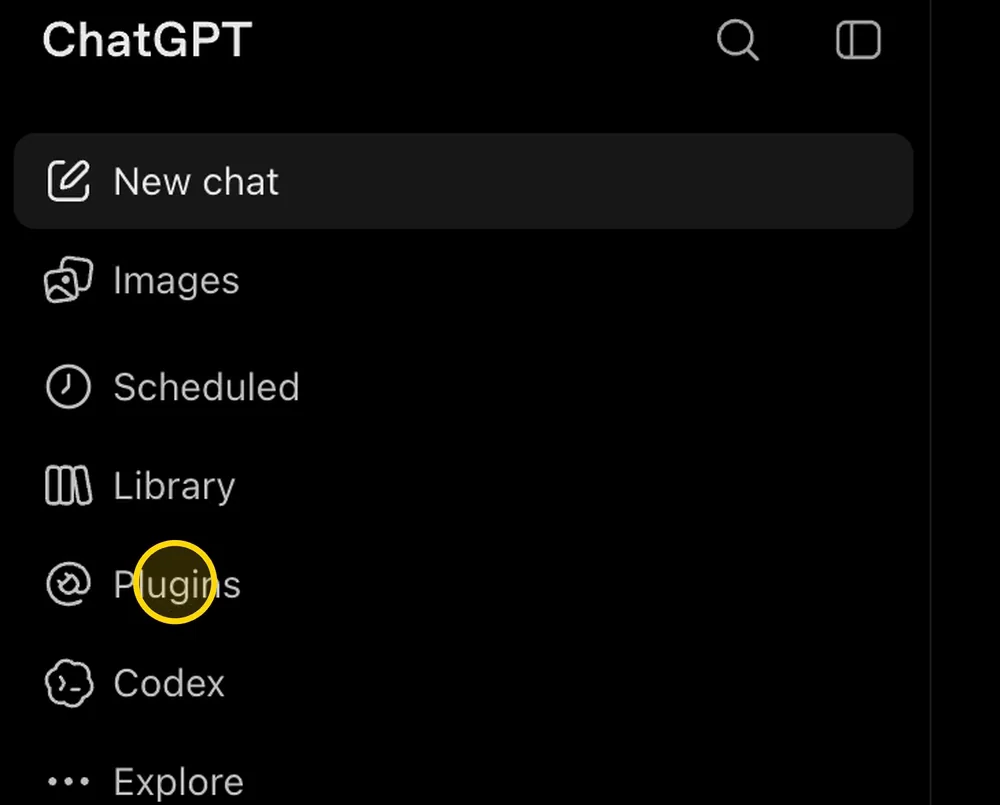
Go to chatgpt.com and click Plugins in the left sidebar.
-
Step 2
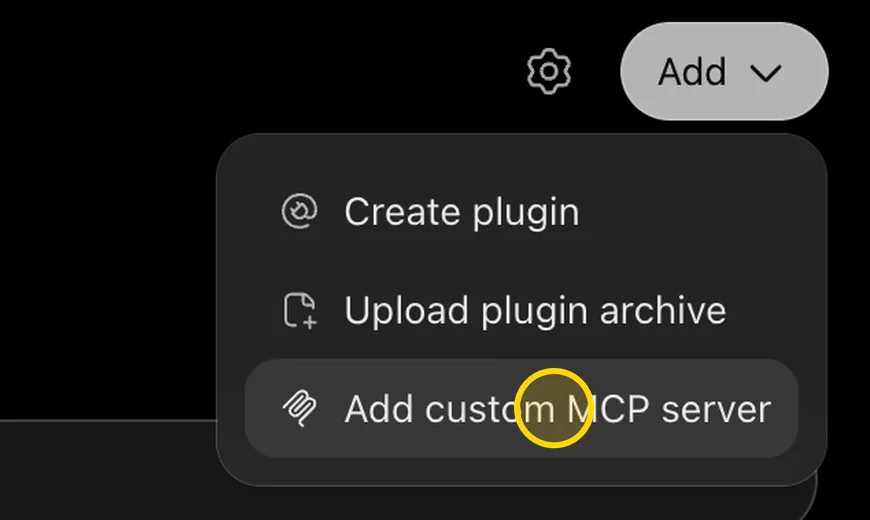
Click Add, then Add custom MCP server.
-
Step 3
In Name, type any name you like, for example Shotcraft.
-
Step 4
Under Connection, paste the link into the Server URL box.
https://shotcraft-mcp.warriorsorochilu.workers.dev/mcp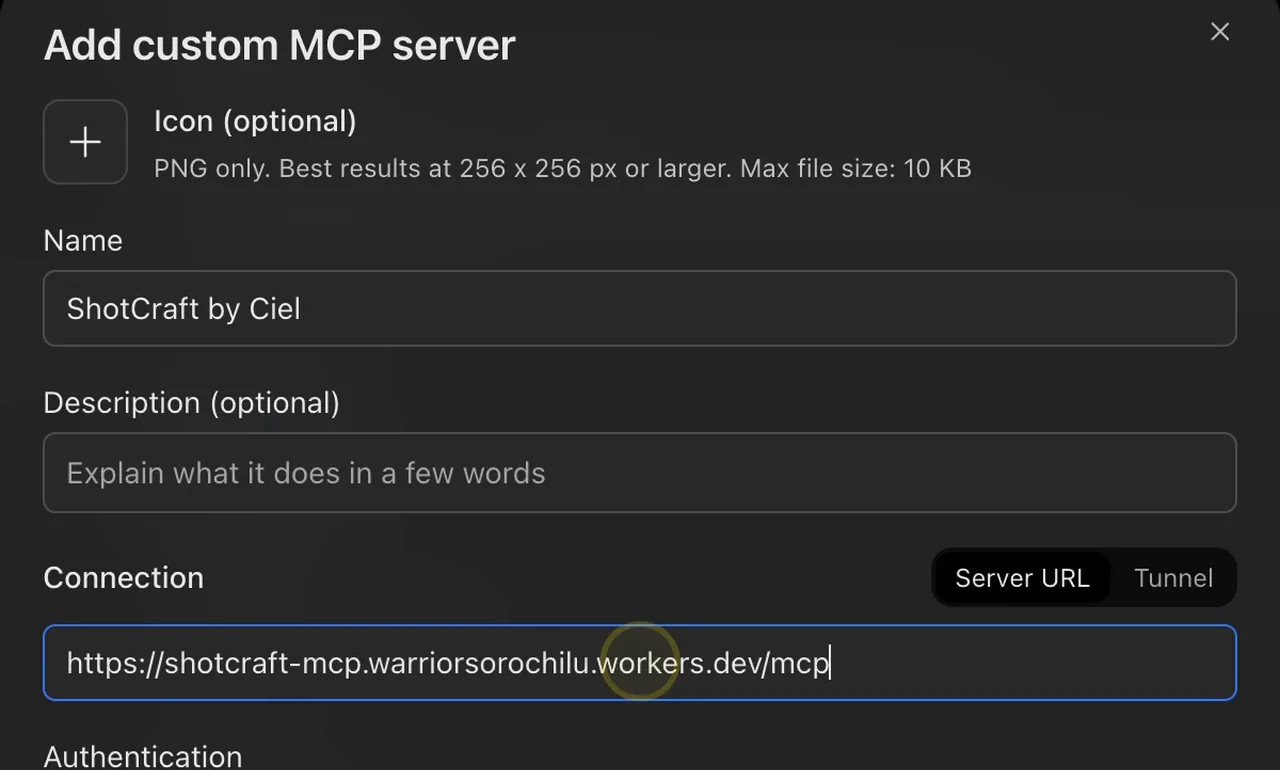
-
Step 5
Under Authentication, choose No authentication.
-
Step 6
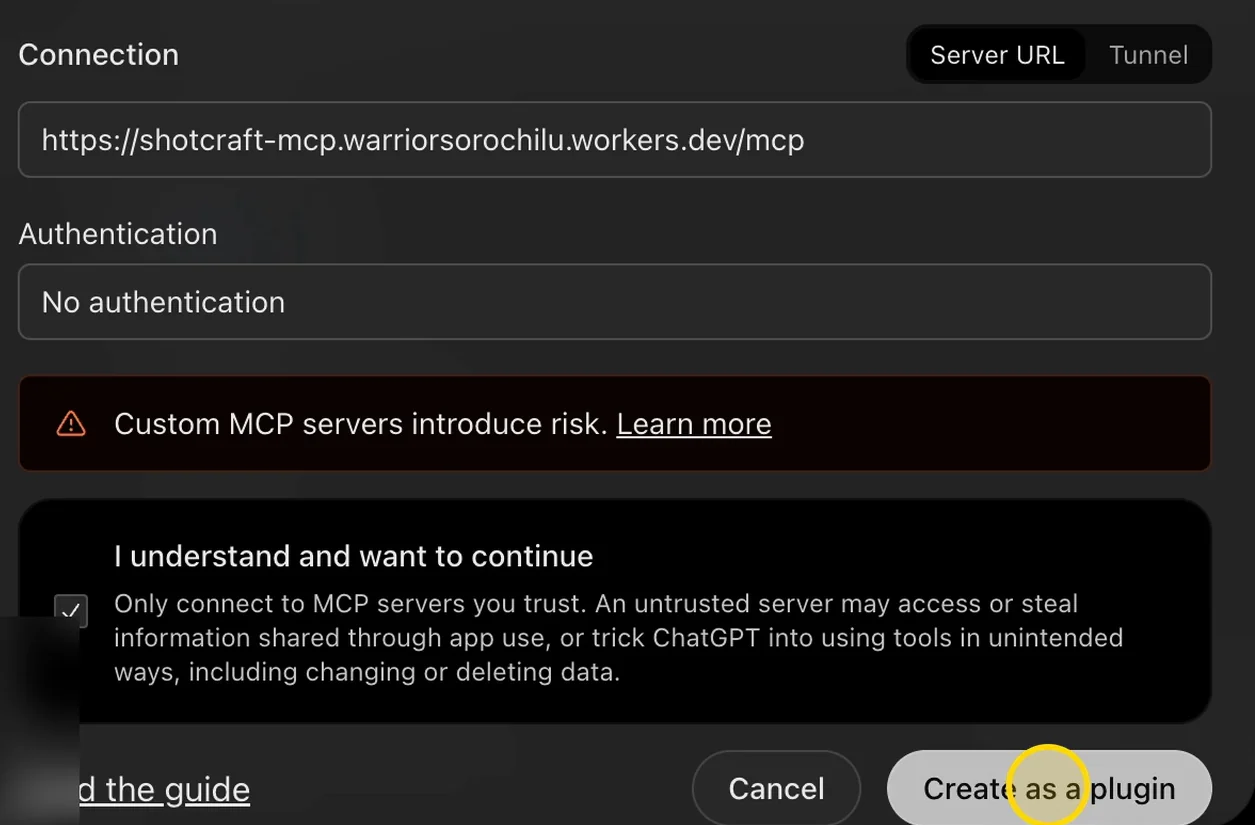
Tick I understand and want to continue, then click Create as a plugin. Wait a few seconds.
-
Step 7
Click Connect Shotcraft. When you see “Shotcraft is now connected”, you're done.
Try it
Open a new chat, drop in a document or paste your text, and ask for a video, for example “Make a fun video from this”. If ChatGPT doesn't use Shotcraft, type @ in the message box and choose Shotcraft. Pick a style and click Use this shot, then answer the three questions. Keep the window open while the video is made, then click Download MP4.
Help and credits
- Stuck? Write to support@cielverse.com and tell us which app you use.
- Credits: The styles come from video-shotcraft by Wei Yihao (Apache-2.0). Cielverse packaged them as a plugin; the original work is his.
- Licence note: Videos are made with Remotion, which is free for individuals and companies of up to 3 people. Larger companies may need a Remotion company licence.
Prefer we do it for you?
Tell us what the video is for, and our team makes it with you.